
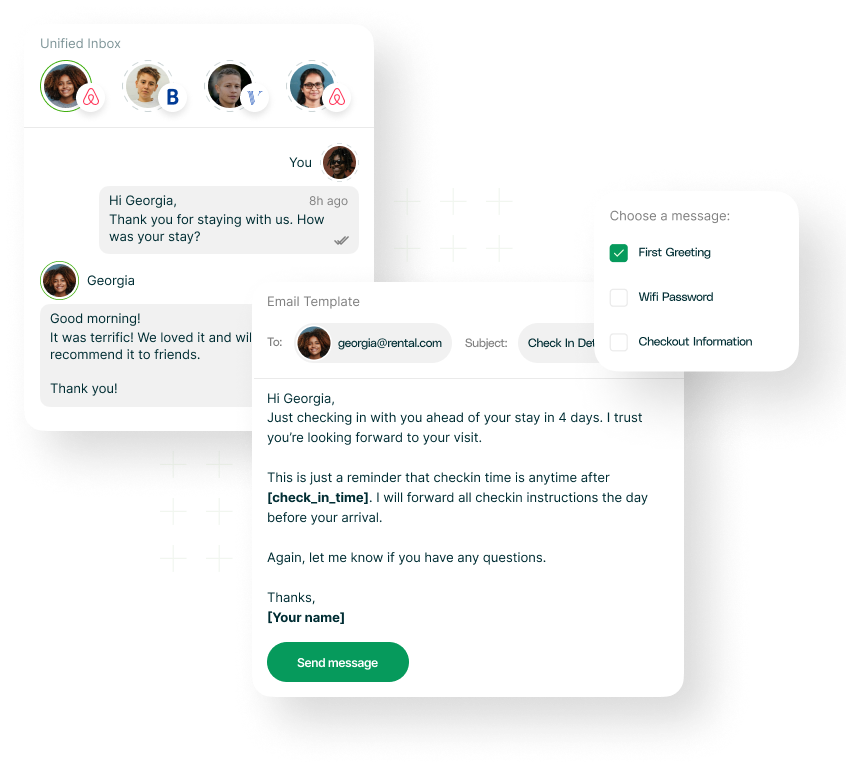
In today’s fast-paced world, guests are always connected through their phones, and traditional email communication may not always be the most effective way to engage with them.
While all guest communication for API-connected channels (like Airbnb or Booking.com) happens through each platform’s official messaging system, you can now use WhatsApp as a direct and convenient alternative — especially for Direct Bookings, where the default method is email.
With this new integration, you can easily send your message templates via WhatsApp, making your communication faster, friendlier, and more personal.
⚙ Before You Begin
Before sending any messages via WhatsApp, make sure you have your Message Templates properly configured.
This ensures that all dynamic data (like guest names, property details, or booking dates) is automatically pulled into your messages — keeping communication accurate, timely, and professional.
💬 How to Start Messaging Your Guests via WhatsApp
Access the Booking
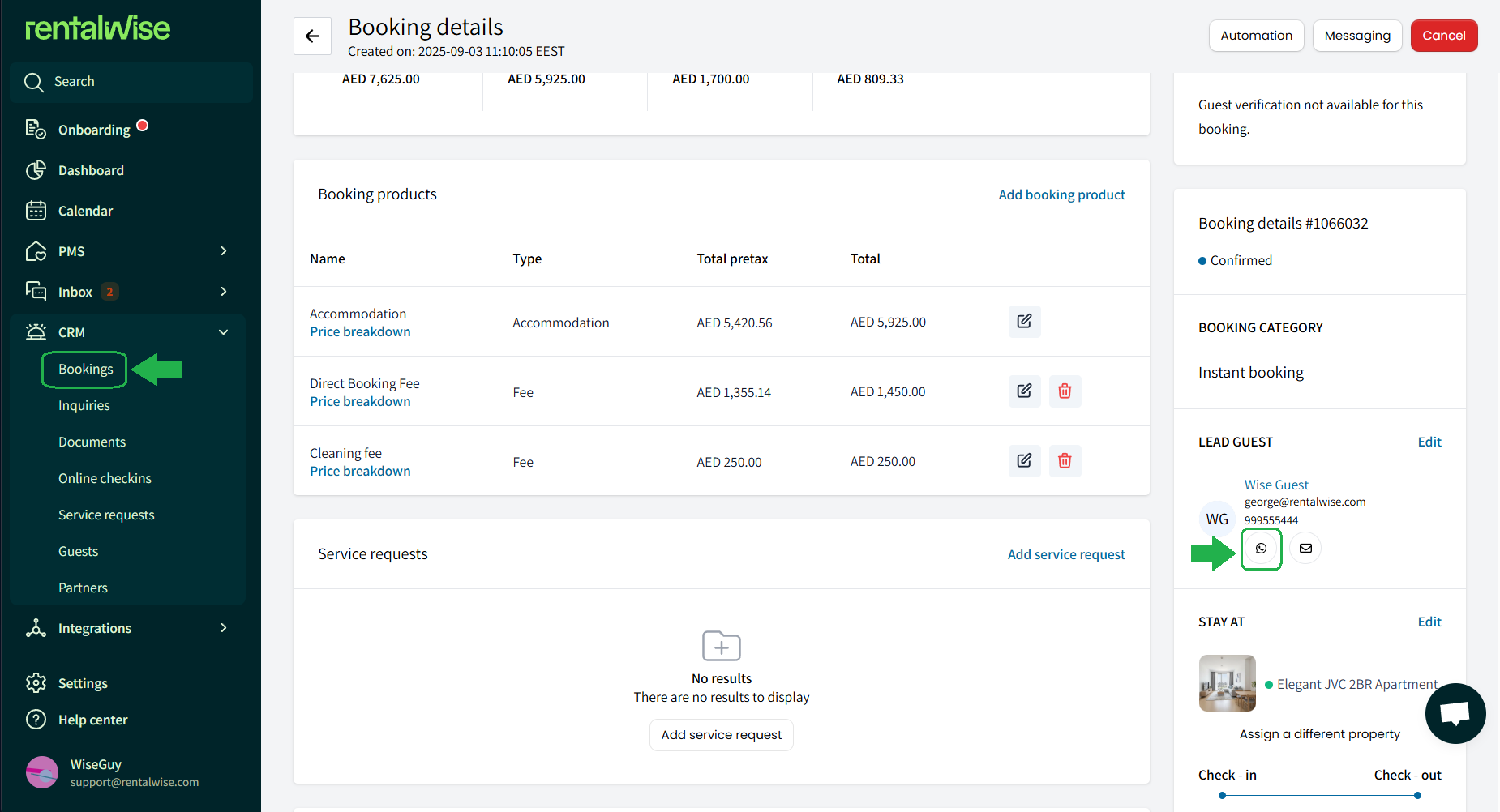
Go to CRM → Bookings and open the desired booking.
Locate Guest Details
On the right-hand side, you’ll find the guest’s name, contact details, and communication icons.
Choose Your Channel
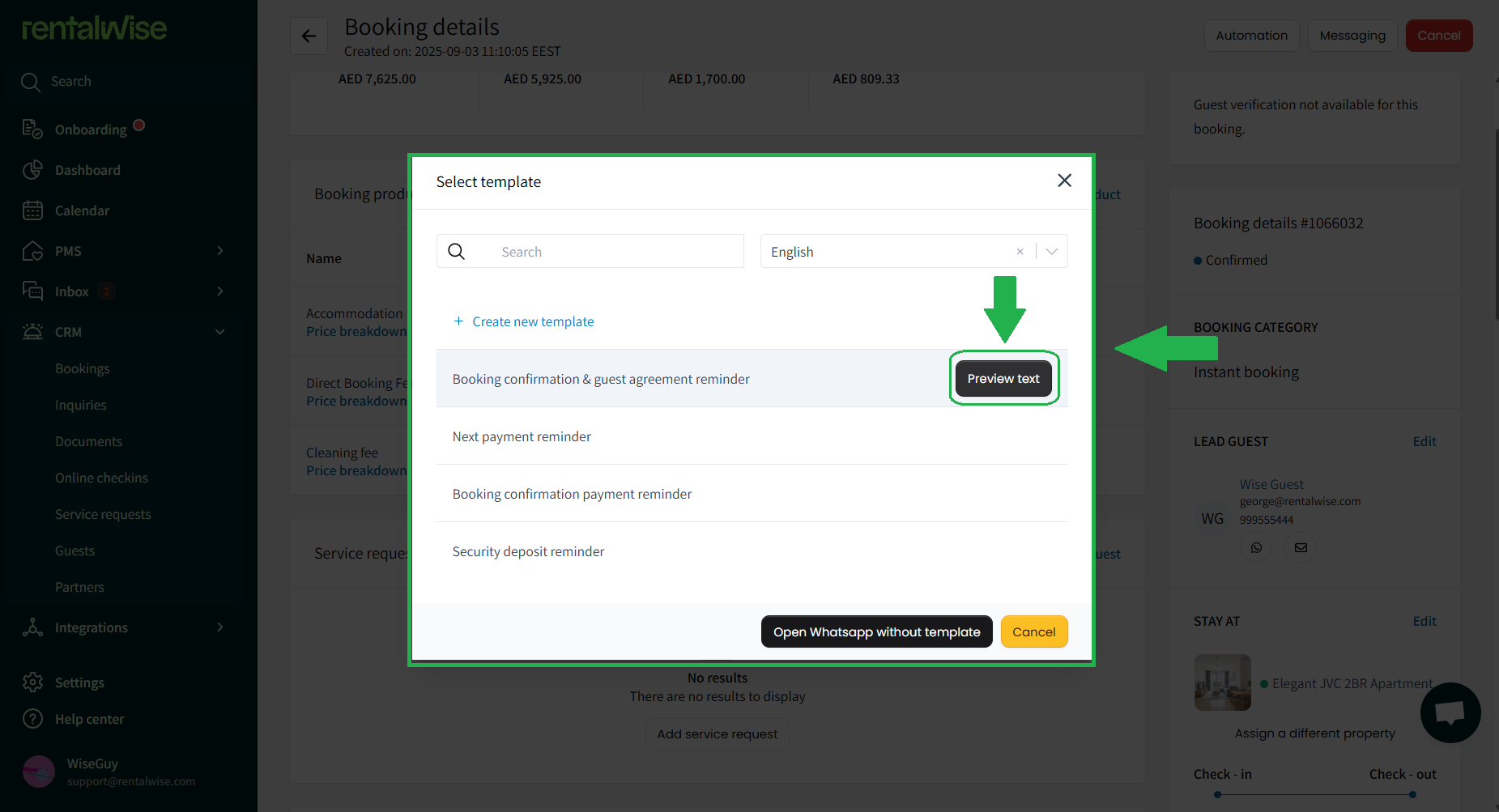
Click the WhatsApp icon to open the message preview.
Review your message text and verify that all merge fields (like
{{ guest.first_name }}or{{ record.property.name }}) are displaying correctly.Once ready, click Send to deliver the message directly to your guest via WhatsApp.
✅ That’s it! You can now reach out to your guests via WhatsApp for quick confirmations, updates, or pre-arrival communication.
📌 Things to Remember
Correct Phone Number Required
If the guest did not provide a valid phone number (either via an OTA or your Direct Booking Website), sending messages via WhatsApp will not work.Guest-Initiated WhatsApp Chat
Another WhatsApp integration allows guests to contact you directly via WhatsApp chat.Open Without Sending
You can open the guest’s WhatsApp chat without sending a message by clicking the respective button next to their contact details.
💡 Best Practices
Create WhatsApp-Specific Message Templates
Set up 2–3 dedicated message templates tailored for WhatsApp. This helps you enhance communication quality and fully utilize WhatsApp’s conversational nature — shorter, friendly, and more engaging messages work best.Examples include:
A pre-arrival reminder with check-in info.
A welcome message with quick contact links.
A post-checkout thank-you note with feedback or review links.
Keep It Conversational
WhatsApp is less formal than email. Use a friendly tone, emojis (sparingly), and clear calls to action to make your messages feel personal and approachable.Stay Responsive
Guests often expect quicker replies via WhatsApp. Aim to respond promptly to questions or confirmations, ideally within minutes or an hour during working hours.Respect Privacy
Avoid sending marketing or promotional content via WhatsApp unless guests have explicitly opted in. Keep communications related to their booking and stay experience.
Using WhatsApp for guest communication helps you stay responsive, efficient, and personal, creating a smoother and more engaging guest experience — all while maintaining professional consistency within your RentalWise workspace.