
Overview
Users are individuals who have access to specific areas of your RentalWise account based on their assigned role. Unlike Admins, Users are generally considered "outside the company" and have a more restricted set of available permissions. Common examples include property homeowners, cleaners, maintenance personnel, service vendors, and travel agents.
This guide explains what Users are, when to use them, and how to add and configure User accounts including Travel Agent settings.
Prerequisites
You must be logged in as an Admin with permissions to manage Users
You need the email address and relevant details of the person you want to add
When to Add Someone as a User
Users are the recommended account type for most people who need access to your RentalWise account. Add someone as a User if they are:
Person Type | Recommended Role |
|---|---|
Property homeowner (you manage their property) | ✅ User — Homeowner role |
Cleaner or housekeeper | ✅ User — Operations role |
Maintenance staff | ✅ User — Operations role |
Service vendor | ✅ User — Operations role |
Travel agent or booking partner | ✅ User — Travel Agent role |
Internal employee (sales, concierge, support) | ✅ User (recommended)* |
Accounting team member | ✅ User or Admin |
Business owner or partner | ❌ Admin |
Needs Websites Module access | ❌ Admin (required) |
RentalWise Recommendation: Internal employees such as sales teams, concierge teams, and accounting teams can be configured as either Admins or Users. However, we recommend adding them as Users unless they require access to the Websites module or master platform settings. This provides better security boundaries while still offering robust functionality.
Step-by-Step Instructions
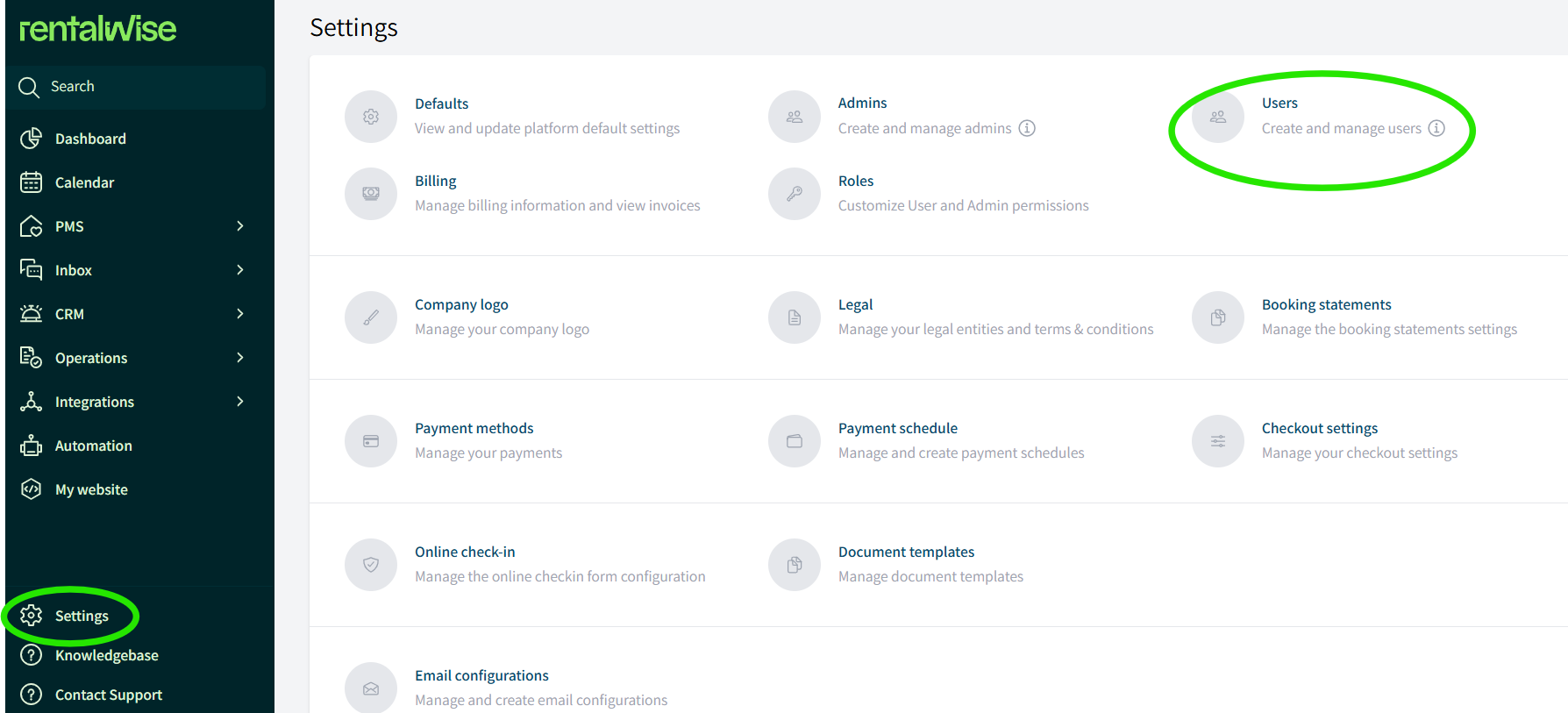
Step 1: Navigate to User Settings
Click on Settings in the main navigation menu
Select Users from the settings menu
Step 2: View Existing Users
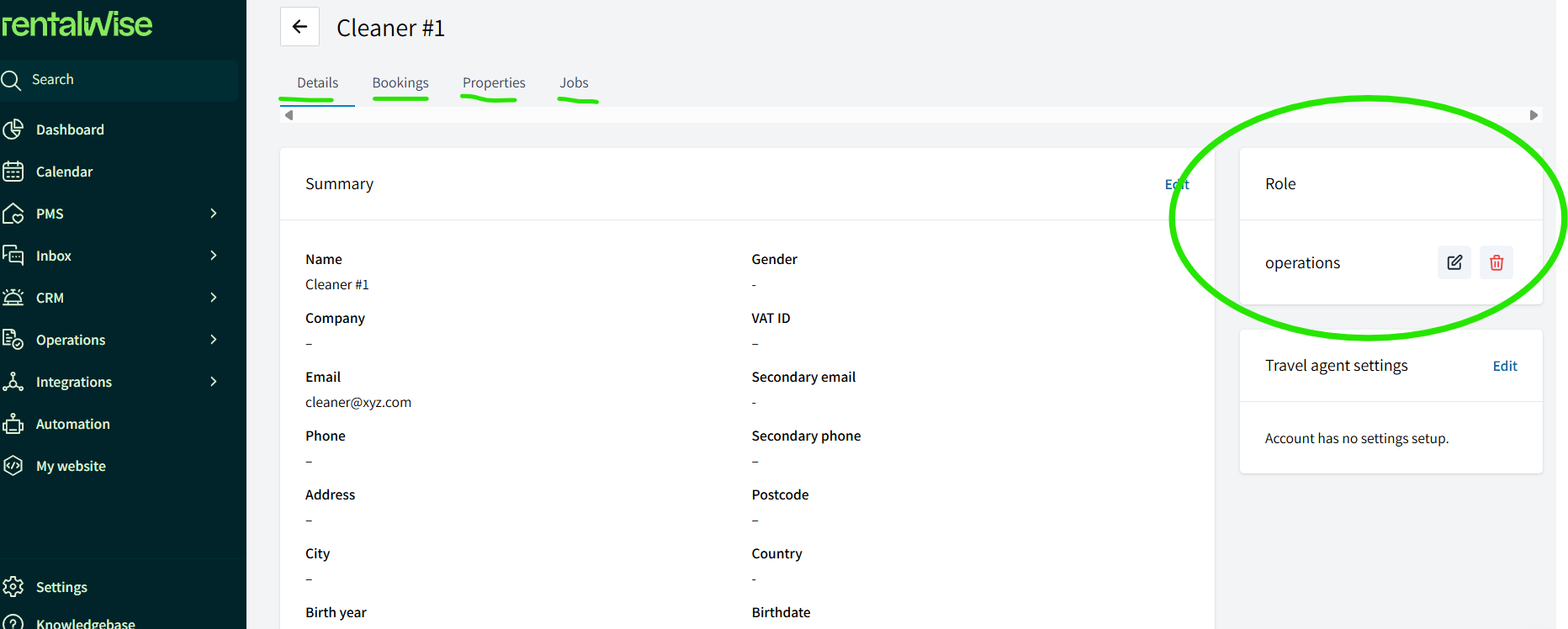
The Users page displays a list of all current Users on your account. For each User, you can view:
Name
Email address
Assigned role
Additional profile information
Step 3: Add a New User
Click the Add User button
Enter the User's information:
Basic Information:
Role — Access of the user
Name — Full name of the user
Email — Must be unique (not already used by an Admin or another User)
Phone — Contact phone number (optional)
Address — Physical address (optional)
VAT Number — For invoicing purposes if applicable (optional)
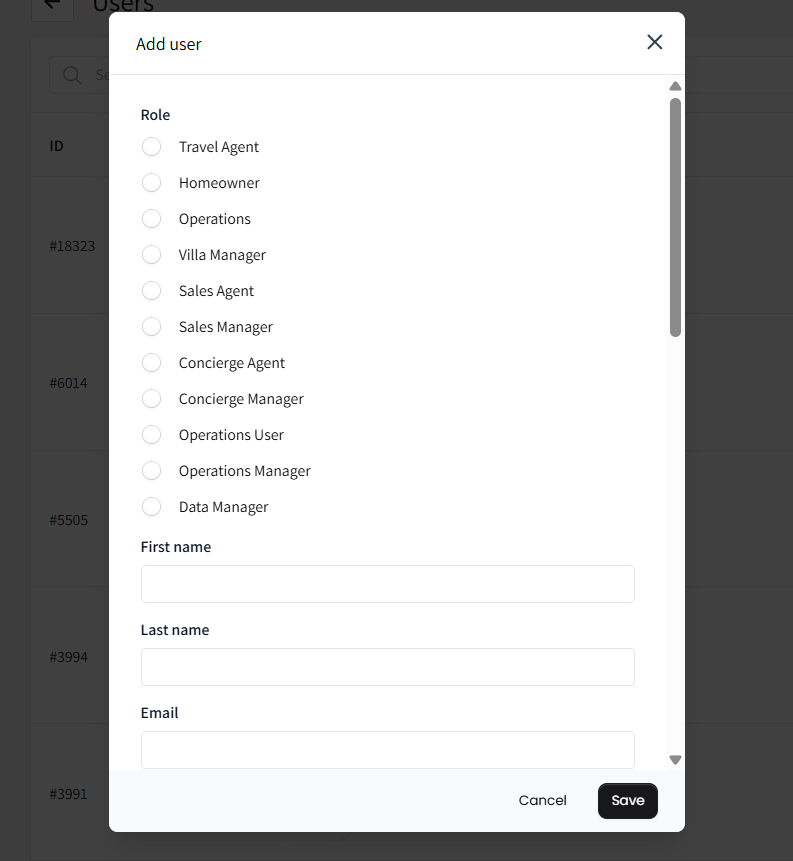
Assign a Role from available User roles:
Homeowner — For property owners whose properties you manage
Operations — For cleaners, maintenance, and service staff
Travel Agent — For booking partners and travel agents
Custom roles — Any User roles you have created
Click Save or Create
Step 4: Configure Travel Agent Settings (If Applicable)
If the User is a Travel Agent, additional configuration options are available:
Locate the User in your Users list
Click to edit their profile
Navigate to the Travel Agent Settings section
Configure:
Commission rates
Mark-Up terms
Step 5: Assign Properties to Users
For roles like Homeowner or Operations, you may need to specify which properties or Jobs the User can access:
Edit the User's profile
Locate the Property Scope or Job Assignment tabs of the user to see current access
Configure their access level:
Property Scope Option | Description |
|---|---|
All properties | User can see every property in the account |
Homeowner properties only | User only sees properties where they are listed as homeowner |
Assigned job properties | User only sees properties where they have an assigned booking job |
Enabled properties only | User sees all properties with an enabled status |
Pre-Configured User Roles
Role | Designed For | Customizable |
|---|---|---|
Homeowner | Property owners whose properties you manage | ✅ Yes |
Operations | Cleaners, maintenance, service vendors | ✅ Yes |
Travel Agent | Booking partners, travel agents | ✅ Yes |
Note: All pre-configured User roles can be customized, and you can create additional custom User roles in Settings → Roles.
Understanding User Permissions
User roles have granular permissions that control what each User can see and do. Key permission categories include:
Properties:
View properties, availability, rates, content, jobs, reviews, configuration
Manage availability, rates, content, jobs, reviews, configuration
Bookings:
View bookings (with various scope filters)
View/manage guest info, pricing, financials, check-in, documents
Create, update, confirm, reject, cancel bookings
Operations:
View and manage booking jobs and tasks
Mark tasks complete or report issues
Communications:
View and manage inbox
Send and reply to messages
For detailed information on customizing these permissions, see Customizing Roles and Permissions.
Important Notes
Users vs. Admins
Users have access to a defined set of features based on their role
Users cannot access the Websites module or master platform settings
Admins have broader access capabilities and can be granted access to any platform feature
User roles and Admin roles are completely separate and do not overlap
Email Uniqueness
Each email address can only be associated with one account in RentalWise. A person cannot be both an Admin and a User—they must be one or the other.
Booking Scope Filters
User roles include "Booking Scope" settings that filter which bookings a User can see:
Booking Scope | What They See |
|---|---|
Homeowner Bookings | Only owner stay bookings |
Pending Payment & Beyond | Bookings from pending payment onwards |
Confirmed & Completed | Only confirmed or completed bookings |
Has Assigned Jobs | Only bookings where they have an assigned job |
Own Bookings | Only bookings they personally created |
Related Articles
Last updated: April 21, 2026